The dashboard
Everything Qalibr triages lands in one place. Here’s how it’s laid out.
The sidebar
Workspace
- Inbox — every bug, newest first. A coral badge counts how many are waiting on your decision.
- Paste — hand a report to Qalibr that didn’t come through Slack.
Insights
- Value — the time and money reclaimed. See Value & ROI.
- Reports — what reached your team, what keeps coming back, and whether triage is improving. See Reports.
Configure
- Rules — encode your team’s triage logic. See Rules.
- Templates — standardize how tickets get written. See Templates.
- Integrations — connect and check Slack and your tracker.
Account
- Plan & Usage — your plan, the enrichment meter, and subscription controls. See Usage & overage.
- Settings — your workspace and your data.
Help
- Getting started — a setup guide that tracks where you are.
- Support — open a ticket with us. A coral badge counts threads waiting on your reply. See Support.
- Docs — these pages, in a new tab.
The Inbox
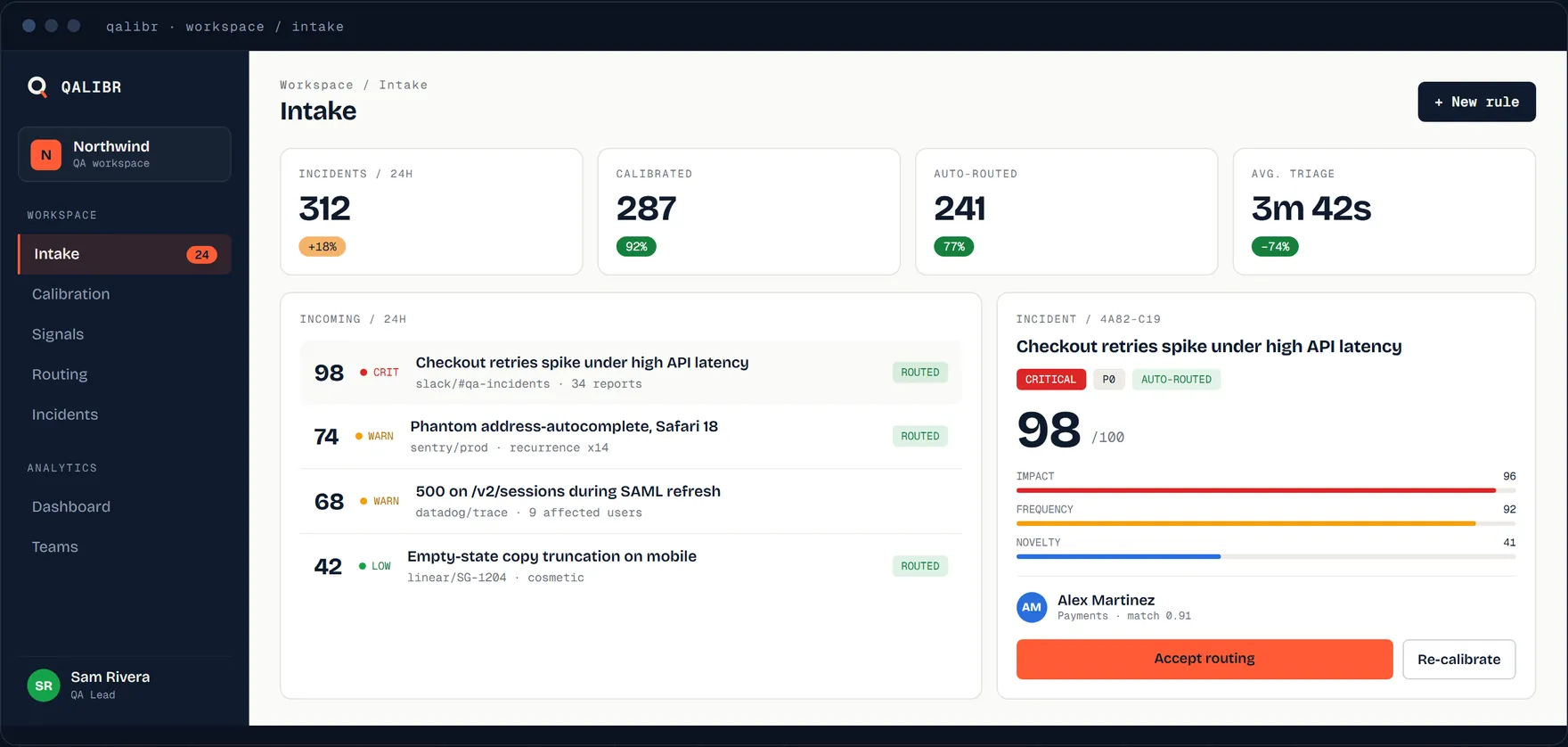
Above the list, four cards give you the week at a glance — new, in review and routed this week, each against last week, plus your 30-day dedup rate.
Needs you now ranks the handful of reports with the strongest signal and says in plain words why each one is there. It is the one place the Signal score decides the order.
Then the list itself. Each row is one bug, showing its Signal score, severity (with its calibration marker), a status, the title, who reported it, and its age. Rows that arrived through Paste carry a [ PASTED ] marker.
Filter with the chips above the list — by status, by severity, or both at once, so you can pull up every Critical bug still in Review. Your selection lives in the URL, so a filtered view is a link you can bookmark or share.
The list is newest-first, not score-first. The Signal score is the priority read on each row and what ranks Needs you now — it doesn’t reorder the Inbox.
A bug moves through these statuses:
| Status | Means |
|---|---|
| New | Just arrived; triage is running or queued. |
| Review | Triaged and waiting for your decision. |
| Routed | Approved and created in your tracker. |
| Duplicate | Folded into an existing issue — linked, reopened, or rejected as a duplicate. |
| Rejected | Dismissed — not a real bug. |
| Expired | Sat unreviewed past its window and was set aside. It can be brought back — see Re-trigger expired reports. |
| Error | Something went wrong on the way to your tracker — Qalibr flags it so you can retry. |
A report that reopened a closed issue sits in Duplicate, and its badge reads Reopened · QAL-123 so you can tell that outcome from a plain link. The filter chips cover every status except Expired; expired reports show up under All.
The detail panel
Click a bug to open it, or go straight to it at /dashboard/bugs/<id> — the
link Qalibr’s Slack card points at. You’ll see:
- the enriched Report, tagged [ ENRICHED ], with the original Slack message one click away;
- the Signal score out of 100 and its breakdown — Severity and Frequency, plus Novelty and Sentiment where they were measured;
- the severity with its calibration marker;
- the reasoning behind the call, as plain-English bullets;
- any duplicate candidates, each with a Match score.
Approve and Reject sit at the bottom, and appear once the bug reaches Review. Edit draft is the pencil beside the Report heading, near the top. When Qalibr found duplicate candidates, the decision moves into the candidates panel — link, reopen, reject as duplicate, or route as new — and the plain approve/reject pair steps aside. An expired report shows Re-trigger in the same slot.
You can also approve from the Slack thread. See Approve, reject & edit.
Approving needs a connected tracker. Without one, the panel says so and holds the report rather than burning it — connect a tracker and approve again.