Quickstart
This is the whole path — from signing up to your first routed ticket. Most teams finish in under 30 minutes.
You can start with no setup at all: paste a bug report into the dashboard and watch Qalibr triage it. Connect a tracker when you want real tickets, and add Slack when you want reports captured automatically. Nothing here is a wizard, and nothing blocks anything else.
To open real tickets you’ll need permission to connect your issue tracker. Slack is optional — if you can’t install a workspace app yet, the full triage and approval loop still works from the dashboard.
Create your account
Go to qalibr.io and start a free trial. Enter your company name and work email — your first name is optional, and there’s no credit card. Your 14-day trial is provisioned immediately and the main button takes you straight to your dashboard, signed in. Adding Qalibr to Slack sits next to it as an optional step.
Send your first report
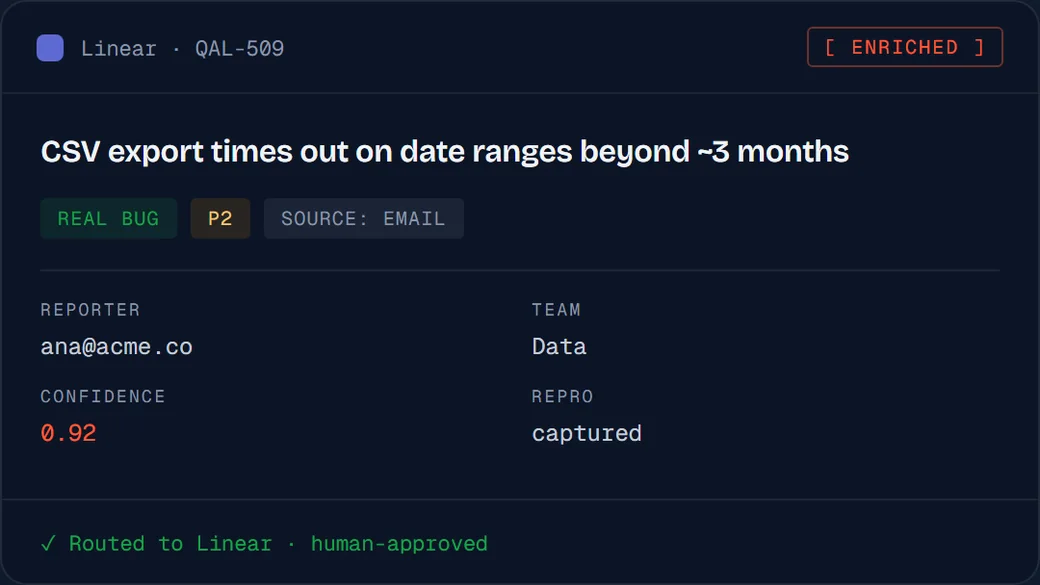
Open Paste in the sidebar, drop in a bug report — a Slack thread, an email, a message from a customer, anything — and send it. Within seconds it appears in your Inbox as a row with a Signal score (0–100) and a severity. Behind that row, Qalibr has read the report, judged whether it’s a real bug, scored it, and enriched it into a clean, structured write-up.
Try it with a real bug rather than “test”. Qalibr classifies what it reads, and a placeholder gets classified as one.
Connect your issue tracker
This is what turns an approved bug into a ticket. Linear and Jira are both supported.
- Linear — paste a personal API key (it starts with
lin_api_), then pick your team from the list Qalibr fetches with it. - Jira — enter your site (
yourco.atlassian.net), your Atlassian account email and an API token, then pick the project and the issue type.
You never type a team id or a project key by hand — Qalibr looks up what your credential can see and you choose from it. See Integrations for the Jira specifics.
Approve it into your tracker
Open the report to see the full Report and the Signal score breakdown. If it’s a real bug, click Approve — Qalibr routes it and confirms with the ticket it created (for example, Approved · routed to ENG-412). If a close duplicate already exists, Qalibr surfaces the closest match and you can link to it instead of opening a second ticket. Not a real bug? Click Reject with a short reason — nothing is created.
Connect Slack — optional, and where it gets good
Click Add Qalibr to Slack and authorize the app in your workspace. Then pick
the channels Qalibr should watch — for example #qa-bugs or #support. Qalibr
only reads the channels you select; everything else stays untouched. Your plan
sets how many you can watch (Starter 3, Growth 10, Scale and above unlimited).
In a watched channel, post a bug and mention @Qalibr:
@Qalibr Checkout spins forever after you tap "Pay" on iOS — happens every time
on the latest build, started this morning.
That mention is the trigger. You can put it on the first message or on any reply in an existing thread — either way Qalibr reads the whole thread, including screenshots posted earlier.
Once Slack is connected you also get the reporter loop: approve a Slack report and the original thread keeps showing the ticket’s live status. See Reporter updates.
Already installed from the Slack App Directory?
If you found Qalibr in Slack and installed it before signing up, that’s fine — your workspace is held for 15 minutes while you create an account, and one click after signup binds it to your new trial.
If your Slack workspace is already connected to another Qalibr account, we’ll show you a screen with two options — continue in that account, or change nothing for now and decide later. Neither one deletes anything.
That’s it
You now have the full loop: reports arrive triaged and scored in your dashboard, and reach your tracker only when you approve them. From here:
- Learn how Qalibr judges and scores each report in Judgment & classification.
- See every dashboard surface in The dashboard.
- Understand what duplicate detection needs before it starts working in Duplicate detection.
Stuck? Getting started in your dashboard tracks where you are, and Support opens a ticket with us from inside the product — see Support.